
Using AttentionTag with teams requires admin consent on behalf of the entire organization. The organization admins can follow this guide to enable AttentionTag in an organization.
NOTE: YOU NEED TO BE ORGANIZATION ADMIN TO DO THE FOLLOWING STEPS. Make sure you are one or share this blog post with your admin.
Step 1: Go to https://admin.teams.microsoft.com/policies/manage-apps/
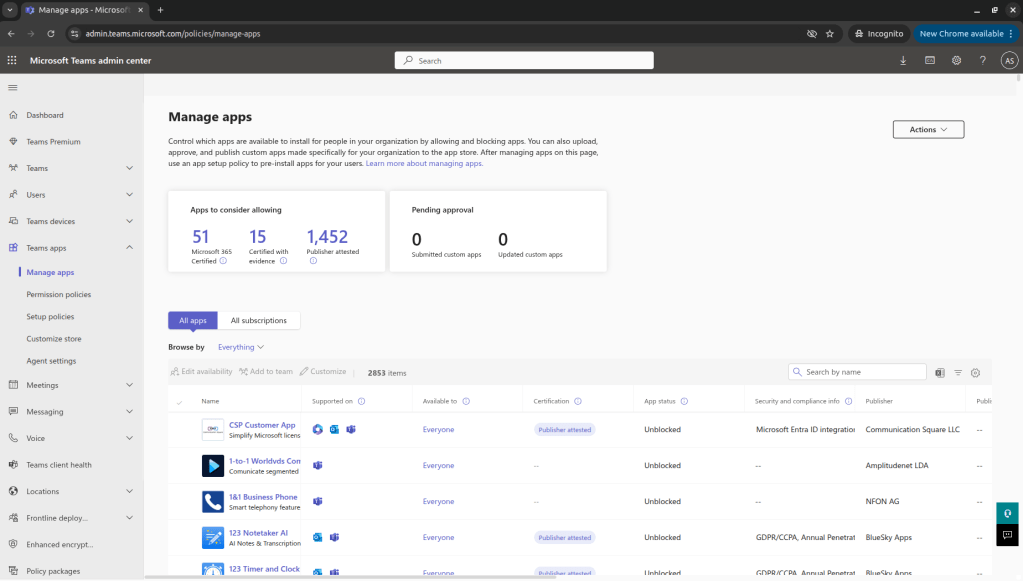
Step 2: In the search box, type “Attention Tag”
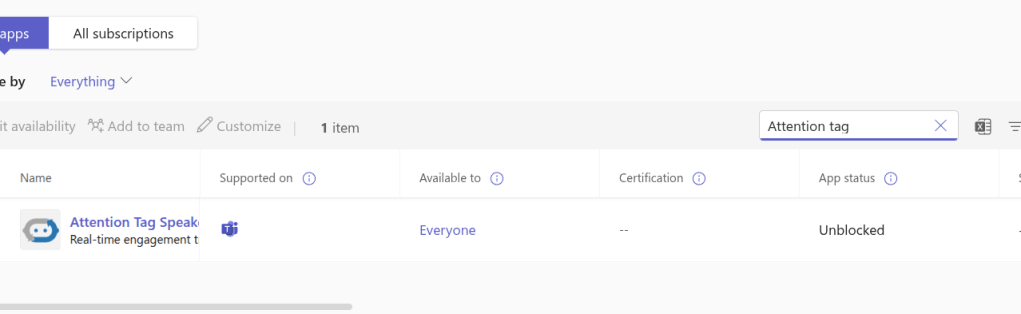
Step 3: Click on Attention Tag Speaker
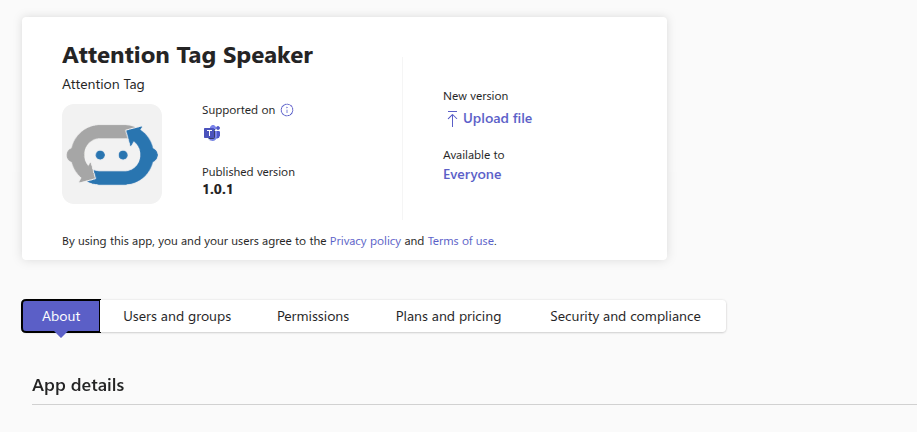
Step 4: Go to Permissions section
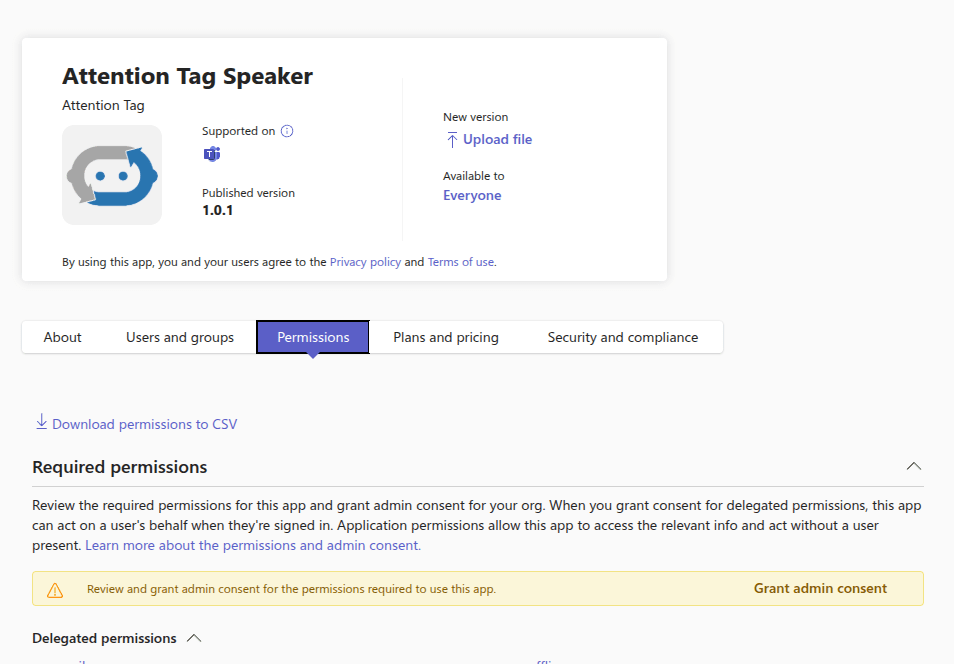
Step 5: Review required permissions and click on Grant admin consent. Verify success and notify your team about the consent approval.

Your team is now good to use AttentionTag with Microsoft Teams. For any other details or queries, refer to https://attentiontag.com/product_demo/ or our Youtube channel Attentiontag.
 Attention Tag